

Contents
When creating a status within the Task Workflow Builder there are a number of Automated Events which can occur once the task reaches a specific status.
Send Email
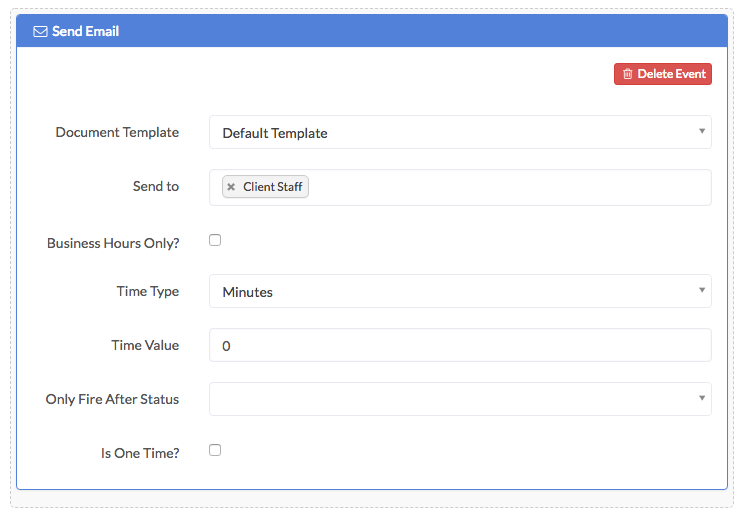
If you’d like an email to be automatically sent when this status is achieved, you first need to select a Document Template from the drop-down menu then specify who you’d like the email to be sent to: Client, Client Staff, Expert and/or Case Owner.
You also have the option to select whether this event should take place during business hours and if an offset should occur between a task entering this status and the automated event happening, this is done by entering a time type (either minutes or hours) and a value.
An automated event can be set to only occur if a task has followed a certain sequence of statuses you should use the “Only Fire After Status”.
A simple example where this feature would be utilised would be:
- A client submits an error report
- You work on the error
- The error is fixed
If the task reaches the 3rd status but you have to revisit the error and return to the 2nd status, you may want an email to be sent to the client letting them know that their report has been reopened. In this situation you’d need to enter into automated “Send Email” for status 2 with the Only Fire After Status being set to the 3rd Status.
You can also select whether this automatic even should happen only once or every time this status is entered.
Dropbox
If you’ve linked your Swiftcase account to your Dropbox account, this automated event will upload a copy of all the files associated with this task workflow to your dropbox account.
Then like email you can choose the offset time, whether it should only occur after a specific status sequence and if it’s a single occurrence event.
Amber/Red Alert
An amber/red alert automatic event allows you to pre-determine the amount of time that a task has to sit at that status for the task to be issued with that alert.
Ready to automate your workflows?
SwiftCase helps operations teams streamline their processes with powerful workflow automation, case management, and AI-powered communication tools.