


Contents
As you and your Team Members use SwiftCase and start creating Tasks, you may wish to use the search form to find exact Tasks- whether those are active or archived!
Starting a Search
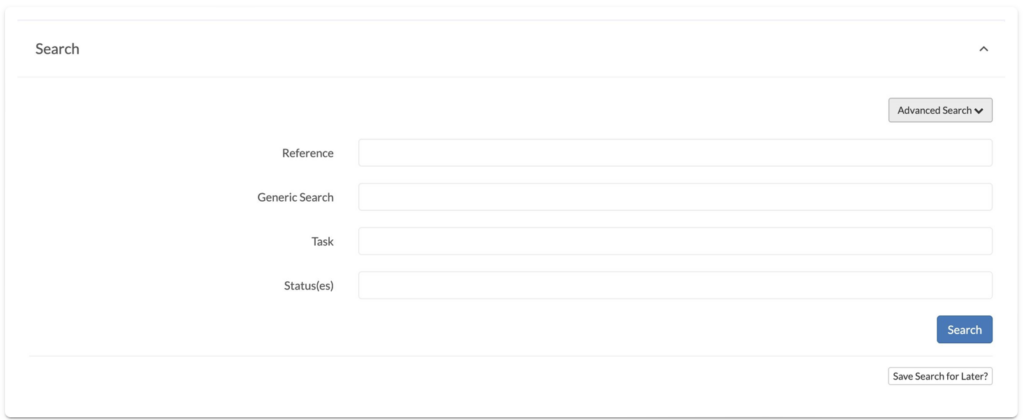
- ClickTasksto navigate to the Dashboard, towards the bottom of the page you will find the Search Form.
- Click on the Search panel to open the Search Form.
- You can enter the Reference of the task, the Workflow of the task, one or more statuses of the task, or use the Generic Search. If you wish to narrow down your search further, clickAdvanced Search Options.
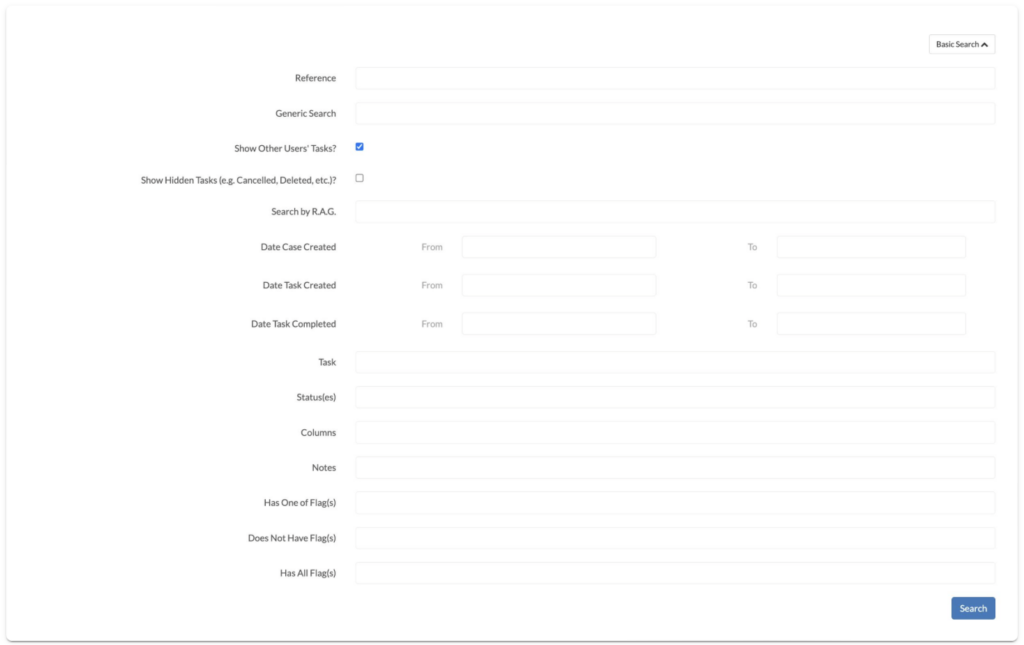
Advanced Search options
-
Show Other Users’ Tasks? –> Search will show other Users’ Tasks and not just your own
-
Show Hidden Tasks –> Search will display tasks that have been deleted or cancelled
-
Search by R. A. G –> Search will display tasks with the R. AG. status you have selected
-
Date Case Created –> To search for a case based on the date it was created, or around the time it was created
-
Date Task Created –> To search for a task based on the date it was created, or around the time it was created
-
Date Task Completed –> To search for a task based on the date it was completed, or around the time it was completed
-
Columns –> To search for tasks based on the customised columns they have e.g. client or summary
-
Notes –> Search will display any tasks with the notes you input
-
Has One of Flag(s) –> Search will display tasks that have the specified Flags
-
Does Not Have Flag(s) –> Search will display tasks that do not have the specified Flags
-
Has All Flag(s) –> Search will display tasks that have all the specified Flags
Ready to automate your workflows?
SwiftCase helps operations teams streamline their processes with powerful workflow automation, case management, and AI-powered communication tools.