


Contents
Work together with your Team to create Tasks, share information and communicate by adding your Team Members to your SwiftCase system.
Adding a Team Member in SwiftCase
- Click on Users to navigate to the Users Page.
- Click + Create and choose Team Member from the dropdown options.
- Fill out the Create Team Member form that opens on the right and click Create Team Member.
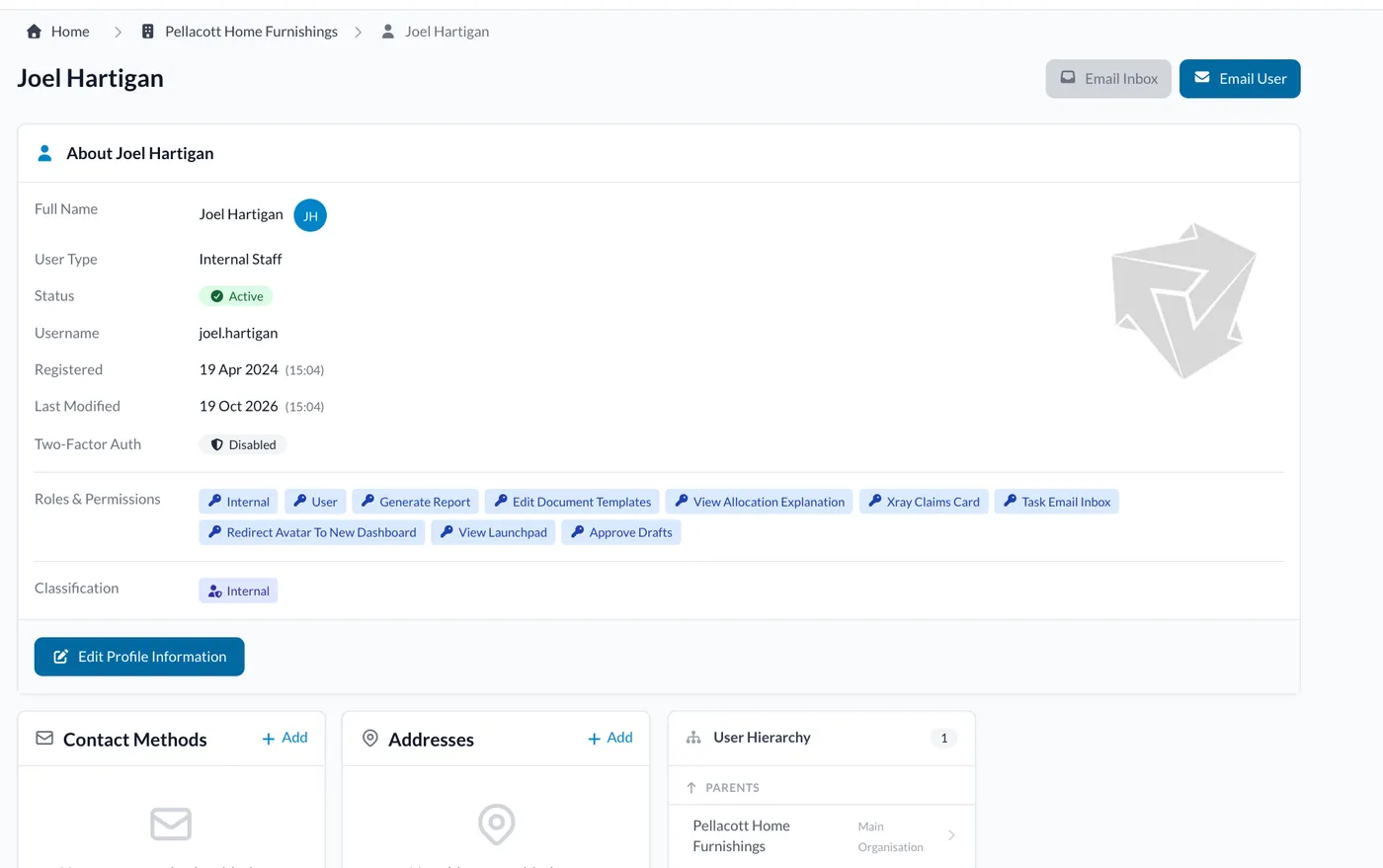
- The new Team Member appears in the list. Click their name to open their profile.
Connecting a User’s email to SwiftCase
In SwiftCase, you can directly send and receive emails. If you need to communicate with a Team Member or Client, you can do so easily in SwiftCase. Follow the steps below to find out how to connect an email to your Team Members’ accounts.
- Click Users and then click My Team Members.
- From the list of Team Members, click on the Team Member who you would like to add an email for. This will take you to their profile page.
- Go to their Email Accounts page and click Add Email Address.
- Fill out the Add Email Account form and click Verify & Save.
Note:
Please note that you will have to enable access to third party applications in your email account and disable two factor authentication, or create an app-specific password, to add the account to SwiftCase.
Ready to automate your workflows?
SwiftCase helps operations teams streamline their processes with powerful workflow automation, case management, and AI-powered communication tools.