

SwiftCase
PlatformSwitchboardFeaturesSolutionsCase StudiesFree ToolsPricingAbout
Book a Demo
SwiftCase

Workflow automation for UK service businesses. Created in the UK.

A Livepoint Solution

Platform

  • Platform Overview
  • Workflow Engine
  • Case Management
  • CRM
  • Document Generation
  • Data Model
  • Integrations
  • Analytics

Switchboard

  • Switchboard Overview
  • Voice AI
  • Chat
  • Email
  • SMS
  • WhatsApp

Features

  • All Features
  • High-Volume Operations
  • Multi-Party Collaboration
  • Contract Renewals
  • Compliance & Audit
  • Pricing
  • Case Studies
  • Customers
  • Why SwiftCase

Company

  • About
  • Our Team
  • Adam Sykes
  • Nik Ellis
  • Implementation
  • 30-Day Pilot
  • Operations Pressure Map
  • For Your Role
  • Peer Clusters
  • Engineering
  • Careers
  • Partners
  • Press
  • Research
  • Tech Radar
  • Blog
  • Contact

Resources

  • Use Cases
  • Software
  • ROI Calculator
  • Pressure Diagnostic
  • Pilot Scope Estimator
  • Board Case Builder
  • Free Tools
  • Guides & Templates
  • FAQ
  • Compare
  • Glossary
  • Best Practices
  • Changelog
  • Help Centre

Legal

  • Privacy
  • Terms
  • Cookies
  • Accessibility

Stay in the loop

Cyber Essentials CertifiedGDPR CompliantUK Data CentresISO 27001 Standards

© 2026 SwiftCase. All rights reserved.

Back to Blog
Workflow Automation

Support Ticket Workflow

The Support Ticket workflow helps handle and log all support issues. Using the Support Ticket workflow Note: The first three steps should be filled.

Dr. Adam Sykes

Dr. Adam Sykes

Founder & CEO

June 6, 2024
3 min read
Support Ticket Workflow
Contents
  • Using the Support Ticket workflow
  • Note:
  • Ready to automate your workflows?

TheSupport Ticketworkflow helps handle and log all support issues.

Using the Support Ticket workflow

Note:

The first three steps should be filled out by the User with the IT problem and they should choose their company as the Client, and their name as the Client Staff.

  1. ClickTasksto navigate to the Dashboard, then click+Create New Task.
  2. Choose a Client and Client Staffand click Create Task.
  3. Choose the Support Ticket Workflow and click Add Task.
  4. Fill out the required fields and click Save. This will update the Task status toRequest Received.
  5. Click the Assign Team Member button and assign a Team Member to resolve the ticket. This will update the Task status to Staff Assigned.
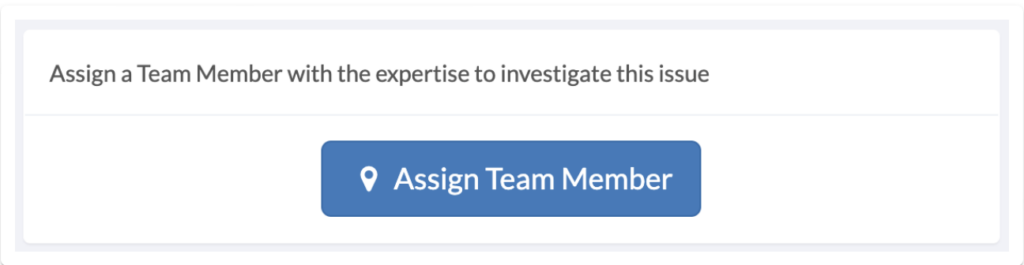
Support ticket task page showing the Assign Team Member button in Request Received status

  1. Now that the User has been assigned, they can go to the Task page and click the greenAccept Taskbutton. This will update the Task status toIn Progress.
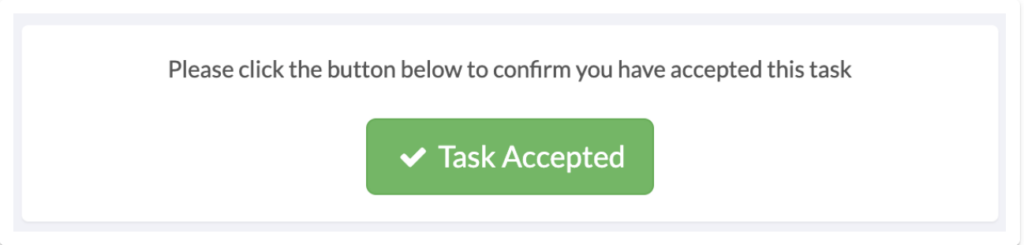
Support ticket task page showing the Accept Task button in Staff Assigned status

  1. If the User does not accept the task they can click on the redTask Declinedbutton. This will return the Task status torequest receivedand you will have to reassign a User by following step 5.

Support ticket task page showing the Task Declined button option

  1. If there is an issue stopping the request from proceeding, the User can enter the details in the blocked box and submit the details by clicking the redBlockedbutton. This will update the Task status toBlocked. If the status is changed toBlockedit will require you or the User to provide notes on the issue in the box provided on the Task page.
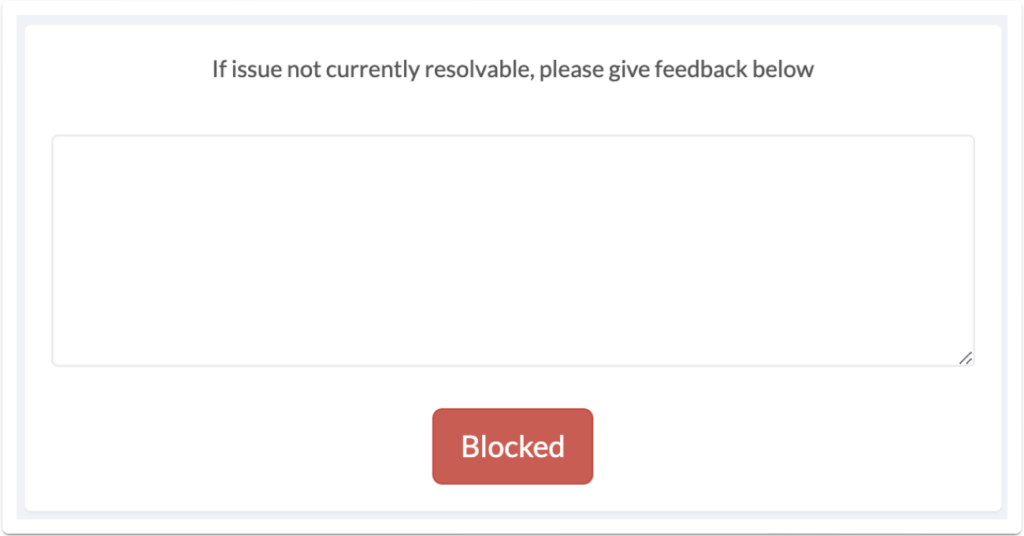
Support ticket task page showing the Blocked status with details input and submit button

  1. Once the issue has been resolved, return to the Task page and provide feedback and click the blueResolvedbutton. This will update the Task status toIn Progress. If the issue is yet to be resolved, provide feedback and click the redBlockedbutton. You can repeat this process until the issue is resolved.
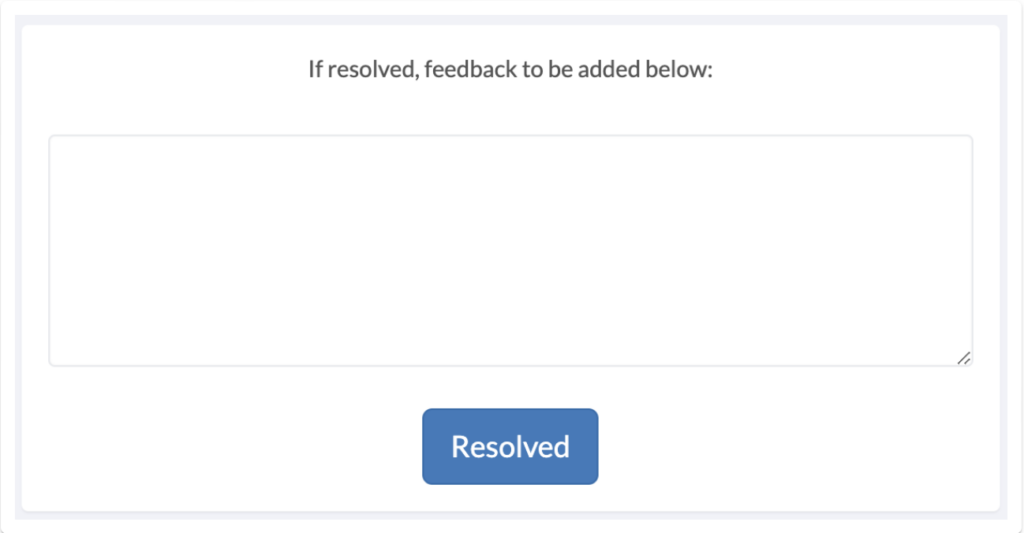
Support ticket task page showing feedback form with Resolved and Blocked buttons

  1. The User will then have to confirm the ticket was completed by clicking the greenIssue Resolvedbutton. If the User does not confirm that the issue is resolved and has been completed for four days, the ticket will automatically close.

Support ticket task page showing the Issue Resolved confirmation button


Ready to automate your workflows?

SwiftCase helps operations teams streamline their processes with powerful workflow automation, case management, and AI-powered communication tools.

Book a demo | View pricing | Explore the platform

Related Articles

Workflow Automation

Case Management vs Workflow Management: What's the Difference?

March 2, 202612 min read
Workflow Automation

What is Workflow Automation? The Complete UK Guide (2026)

March 2, 202618 min read
Workflow Automation

15 Workflow Automation Examples from UK Businesses

March 2, 202614 min read

Get automation insights delivered

Join operations leaders who get weekly insights on workflow automation and AI.

About the Author

Dr. Adam Sykes
Dr. Adam Sykes

Founder & CEO

Founder & CEO of SwiftCase. PhD in Computational Chemistry. 35+ years programming experience.

View all articles by Adam →

Related Free Tools

Workflow Mapper

Draw your business process visually and export a professional PDF.

Try free

SLA Template Builder

Build and download a professional Service Level Agreement.

Try free

Meeting Cost Calculator

See the true cost of your meetings based on attendees and salary.

Try free

11.8M+ cases processed

See workflow automation in action

Build, deploy, and optimise workflows without writing a line of code.

Explore the Workflow Engine
Calculate Your ROI