

SwiftCase
PlatformSwitchboardFeaturesSolutionsCase StudiesFree ToolsPricingAbout
Book a Demo
SwiftCase

Workflow automation for UK service businesses. Created in the UK.

A Livepoint Solution

Platform

  • Platform Overview
  • Workflow Engine
  • Case Management
  • CRM
  • Document Generation
  • Data Model
  • Integrations
  • Analytics

Switchboard

  • Switchboard Overview
  • Voice AI
  • Chat
  • Email
  • SMS
  • WhatsApp

Features

  • All Features
  • High-Volume Operations
  • Multi-Party Collaboration
  • Contract Renewals
  • Compliance & Audit
  • Pricing
  • Case Studies
  • Customers
  • Why SwiftCase

Company

  • About
  • Our Team
  • Adam Sykes
  • Nik Ellis
  • Implementation
  • 30-Day Pilot
  • Operations Pressure Map
  • For Your Role
  • Peer Clusters
  • Engineering
  • Careers
  • Partners
  • Press
  • Research
  • Tech Radar
  • Blog
  • Contact

Resources

  • Use Cases
  • Software
  • ROI Calculator
  • Pressure Diagnostic
  • Pilot Scope Estimator
  • Board Case Builder
  • Free Tools
  • Guides & Templates
  • FAQ
  • Compare
  • Glossary
  • Best Practices
  • Changelog
  • Help Centre

Legal

  • Privacy
  • Terms
  • Cookies
  • Accessibility

Stay in the loop

Cyber Essentials CertifiedGDPR CompliantUK Data CentresISO 27001 Standards

© 2026 SwiftCase. All rights reserved.

Back to Blog
Business

Moving Rules - Expert Allocated

The Expert Allocated Moving Rule automatically moves to a specified status once a User is manually allocated. Adding an Expert Allocated Moving Rule

Dr. Adam Sykes

Dr. Adam Sykes

Founder & CEO

June 7, 2024
2 min read
Moving Rules - Expert Allocated

TheExpert AllocatedMoving Rule automatically moves to a specified status once a User is manually allocated.

Adding an Expert Allocated Moving Rule

  1. Click the Moving Rules tab on the Status to which you want to add the moving rule.
  2. Drag and drop the Expert Allocated moving rule into the blank space on the right.
  3. In the Move To box, select the status you want to move to after an Expert is Allocated.
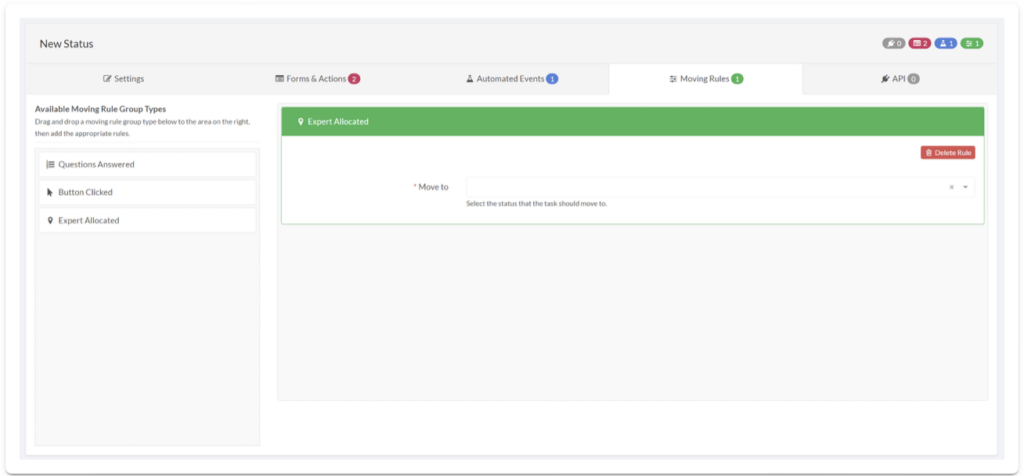
Moving Rules tab showing Expert Allocated rule with Move To status dropdown

Related Articles

Business

Is an unrealistic view of your ability a bonus?

October 21, 20206 min read
Business

Projection Bias: your future self is no more than a stranger to yourself

October 14, 20205 min read
Business

All the Gear and No Idea?

August 19, 20206 min read

Get automation insights delivered

Join operations leaders who get weekly insights on workflow automation and AI.

About the Author

Dr. Adam Sykes
Dr. Adam Sykes

Founder & CEO

Founder & CEO of SwiftCase. PhD in Computational Chemistry. 35+ years programming experience.

View all articles by Adam →

Related Free Tools

Employee Cost Calculator

Calculate the true cost of employment including NI and pension.

Try free

Meeting Cost Calculator

See the true cost of your meetings based on attendees and salary.

Try free

BCP Builder

Build a Business Continuity Plan with guided templates.

Try free

11.8M+ cases processed

Transform your operations

Whether you're scaling up or streamlining, SwiftCase adapts to the way your business works.

Browse Solutions
Calculate Your ROI