


Contents
Document Templatescan be configured in your workflows on yourSwiftCasesystem. Discover how to create document templates by reading on.
Creating a Document Template
- ClickAdmin.
- Click the View button on the Documents panel. This will take you to the Document Template page.
- ClickCreate Template.
- Add a Document Name,File Name, and select a Category.
- Choose a Header Template and a Footer Template.
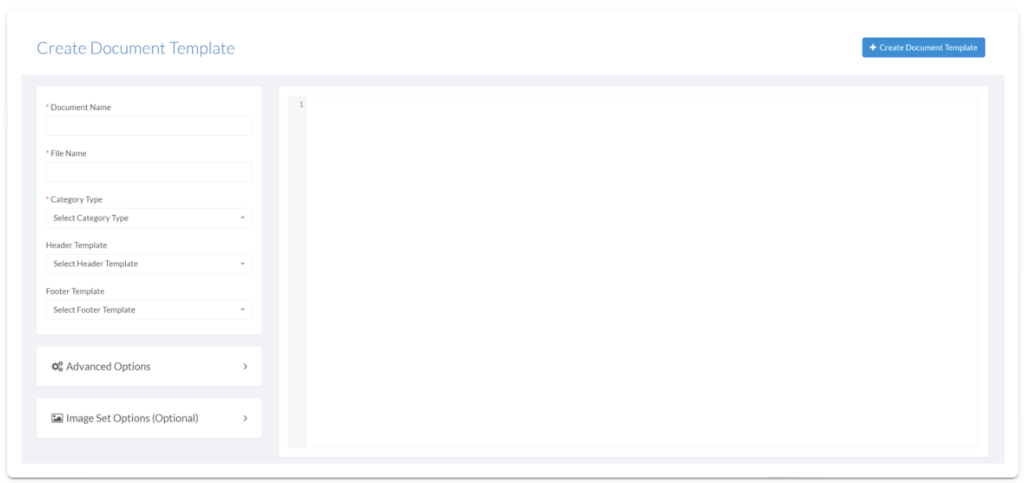
- UnderAdvanced Options, you can customise the format and layout of the document.
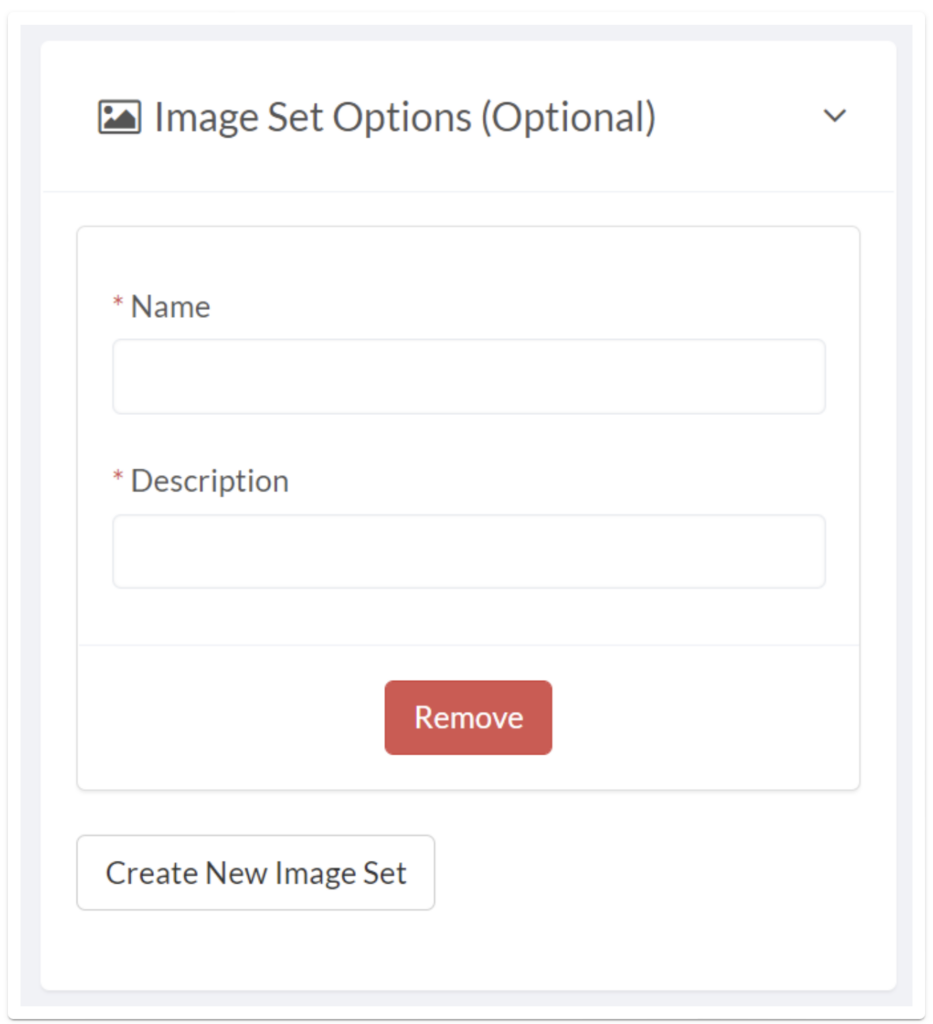
- Under Image Set Options, you can add and create image sets.
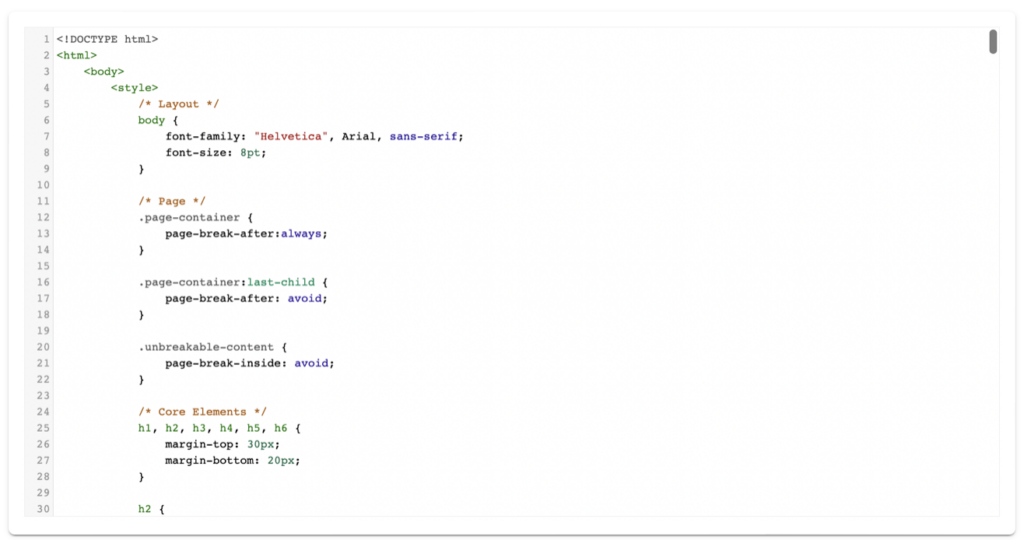
- Add your HTML into the blank space, below is a brief example of what the HTML content will look like.
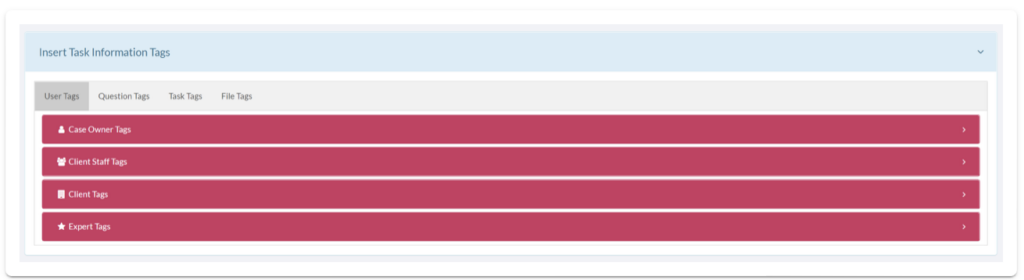
- ClickInsert Task Information Tagto open lists ofUser,Question,Task, andFile Tagsto copy and paste into your document template.
- ClickSave.
Note:
Tags are used to generate and display information from the Task, allowing each document to be specific to that Task. With SwiftCase you can automate the information gathering process by adding information tags so the information will be auto-populated.
For example, a diagnostic testing laboratory uses 52 different document templates across their workflows for DNA testing, drug screening, and occupational health services:all auto-populated with case-specific data.
Ready to automate your workflows?
SwiftCase helps operations teams streamline their processes with powerful workflow automation, case management, and AI-powered communication tools.