


The Send Email automated event automatically sends an email. You can tailor the content of the Email by creating custom Email Templates and choosing who the Email sends to. The message will trigger when specific requirements that you set are met.
Adding a Send Email Automated Event
- Click the Automated Events tab on the Status to which you want to send an email.
- Drag and drop the Send Email automated event into the blank space on the right.
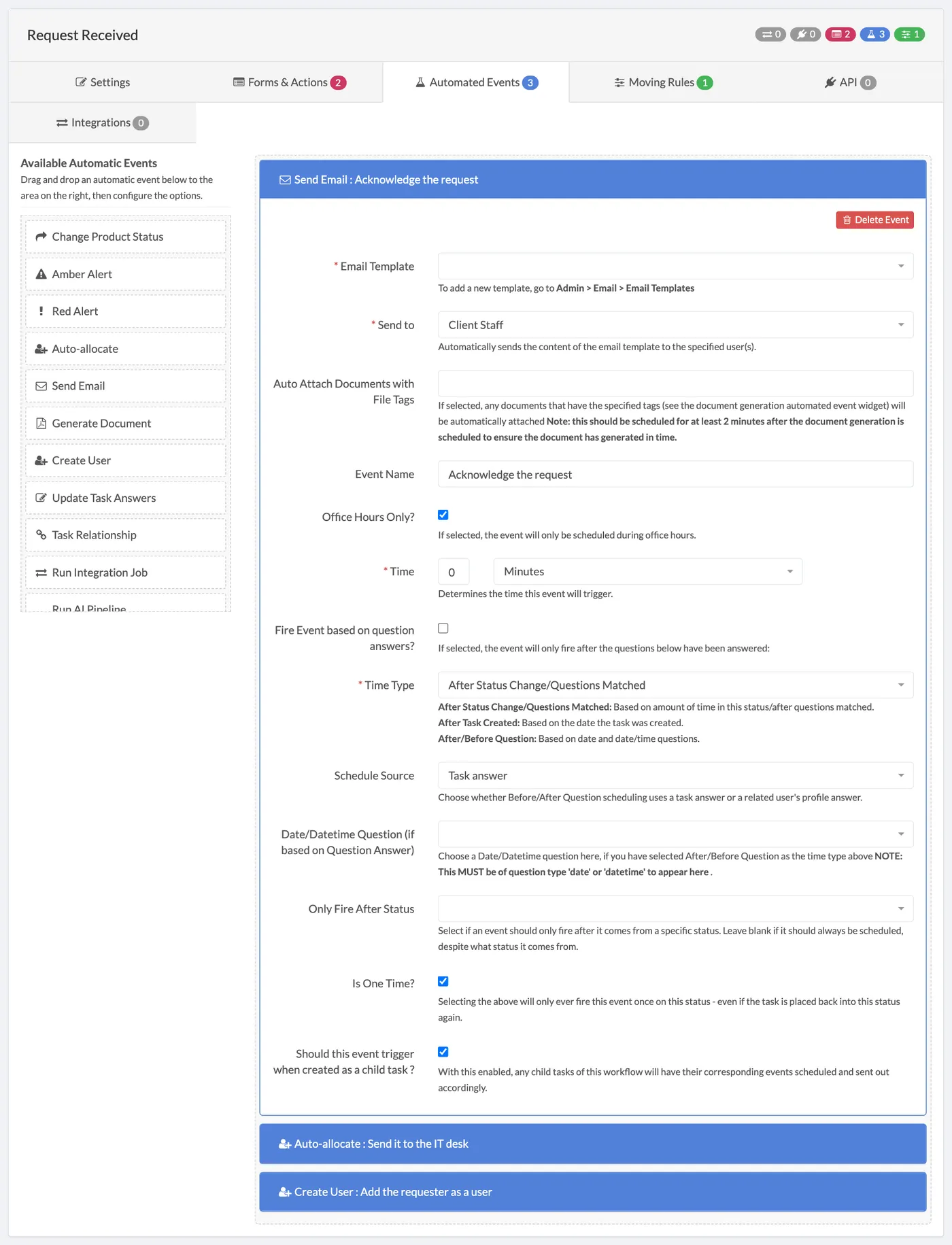
Select an email template from the Email Template dropdown box. To discover how to create Email Templates,view our guide.
Select the user type you want to send the email to from the Send to dropdown box.
If you choose Question Answer in the Send to box, a Recipient Question box appears: select the question that holds the email address. The question type must be Email.
To attach documents to the email automatically, choose their tags in the Auto Attach Documents with File Tags box. Any documents with those tags will be attached. Schedule the email at least 2 minutes after the document generation, so the document is ready in time.
Check the Office Hours Only? checkbox if you want the Email to only send during office hours.
Determine the time the event will trigger using the Time boxes.
Check the Fire Event based on question answers? box if you want a question(s) to send the Email. Checking this box will then display fields for you to add any questions and specify any answers if you want.
In the Time Type box choose rules about when the Email will send:
- After Status Change/Questions Matched: Based on the amount of time in this status/after questions matched.
- After Task Created: Based on the date the task was created.
- After/Before Question: Based on date and date/time questions.
Choose a Date/Datetime Question, if you selected After/Before Question as the Time Type. Note: this question must have the question type date or datetime to appear as a Date/Datetime Question option in the dropdown.
If the Email should only send after coming from a specific status, enter this status in the Only Fire After Status box.
Check the Is One Time? checkbox if you do not want the Email to send more than once, even if it is placed back into this status again.
Check the Should this event trigger when created as a child task? checkbox if you want this Email to send when the workflow is created as a child task.
Ready to automate your workflows?
SwiftCase helps operations teams streamline their processes with powerful workflow automation, case management, and AI-powered communication tools.