


Contents
As you and your Team Members use SwiftCase and start creating Tasks, you may wish to use the search form to find exact Tasks- whether those are active or archived!
Starting a Search
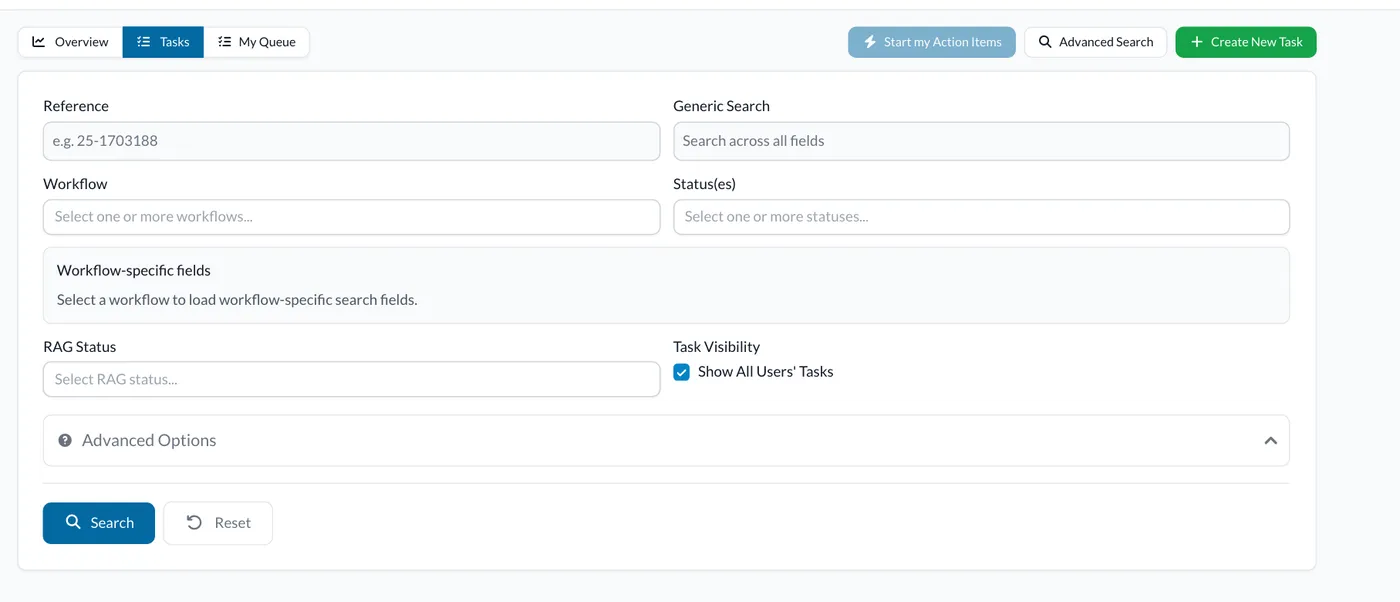
- Click Dashboard, then click Advanced Search at the top right of the page. This opens the Search Form.
- You can enter the Reference of the task, the Workflow of the task, one or more statuses of the task, or use the Generic Search, which searches across all fields. Once you pick a Workflow, its own fields appear under Workflow-specific fields.
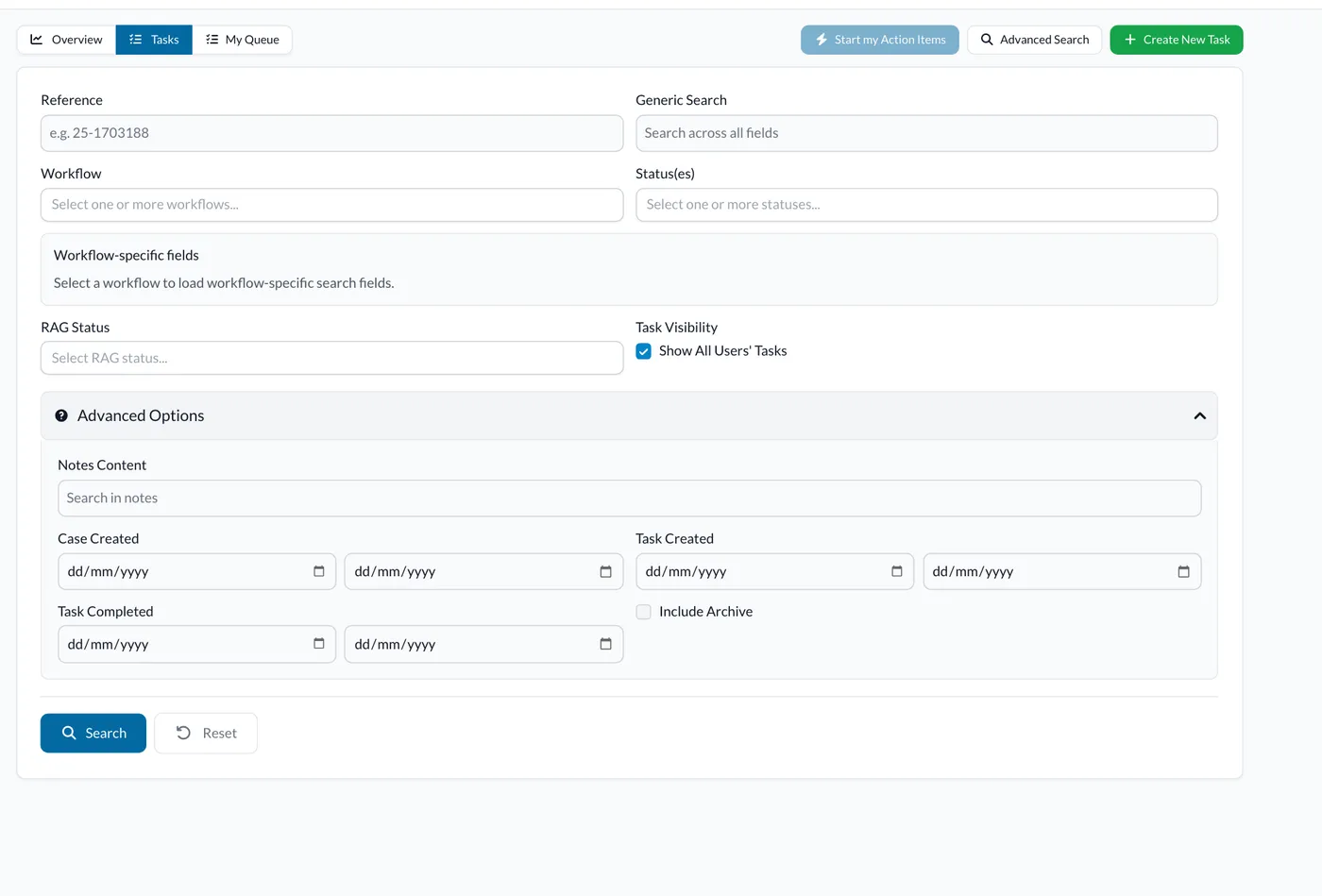
- You can also filter by RAG Status, and tick Show All Users' Tasks to see other Users' Tasks as well as your own. If you wish to narrow down your search further, open Advanced Options. Click Search when you're ready.
Advanced Search options
- Notes Content: Search will display any tasks with the notes you input
- Case Created: To search for a case based on the date it was created, within the dates you enter
- Task Created: To search for a task based on the date it was created, within the dates you enter
- Task Completed: To search for a task based on the date it was completed, within the dates you enter
- Show Hidden Tasks (Cancelled, Deleted): Search will display tasks that have been deleted or cancelled, if your role allows it
- Include Archive: Search will include archived tasks
Ready to automate your workflows?
SwiftCase helps operations teams streamline their processes with powerful workflow automation, case management, and AI-powered communication tools.