


Contents
The Customer Complaint workflow logs and tracks any customer complaints that are submitted.
Using the Customer Complaint Workflow
Note:
The first three steps need to be carried out by the Customer submitting the complaint.
Click Dashboard, then click the green Create New Task button at the top right.
Search for the Client in the Search subject box and select them, then choose the Client Staff.
Choose the Customer Complaint workflow and click Create Task. This opens the Task page, with the task at Complaint Logged.
Fill out the required fields and click Save.
Below the form, click the blue Assign Team Member button and assign a Team Member. This will update the Task status to Team Member Assigned.
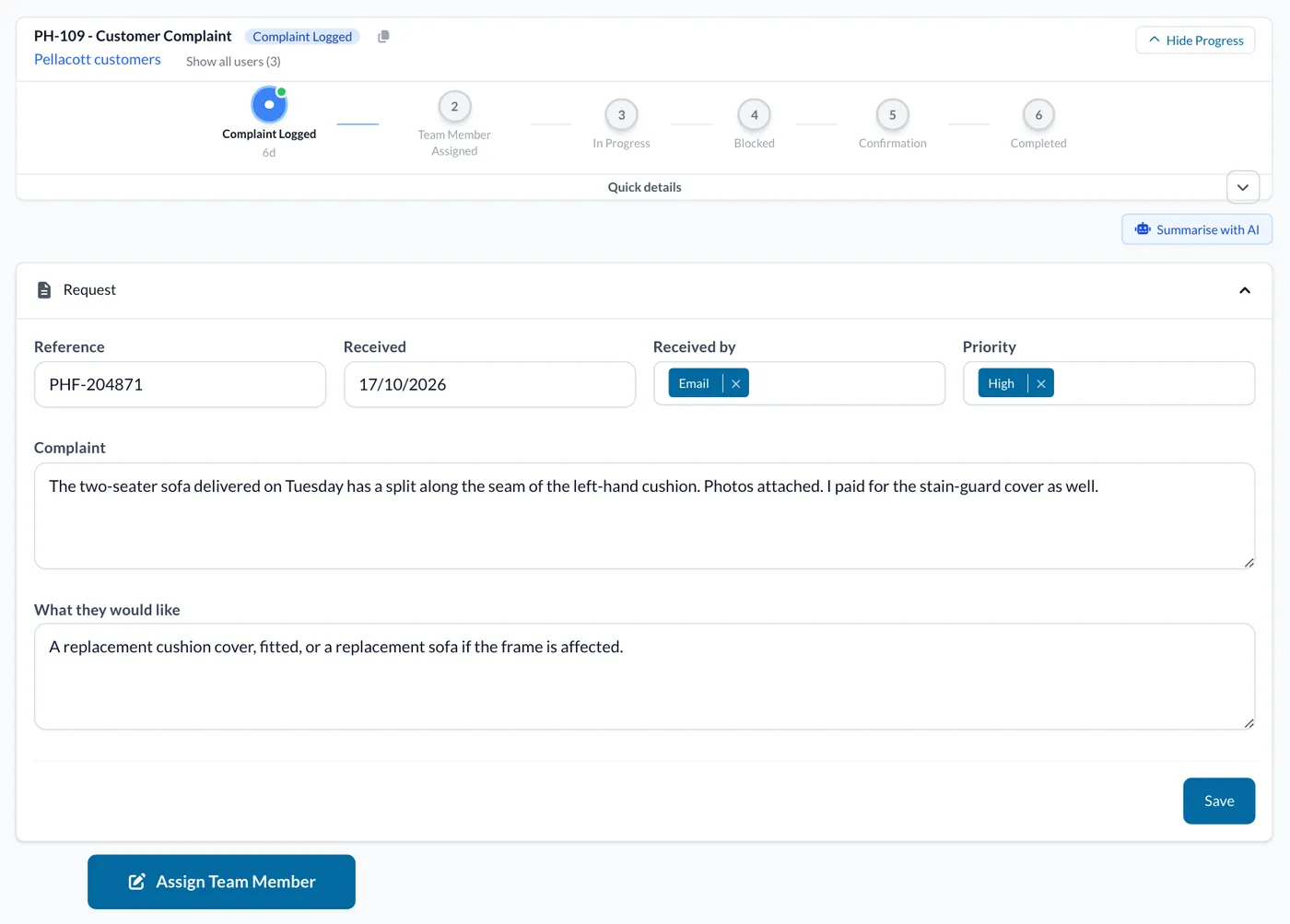
Once that the User has been assigned, they can go to the Task page and click the green Accept Task button. This will update the Task status to In Progress.
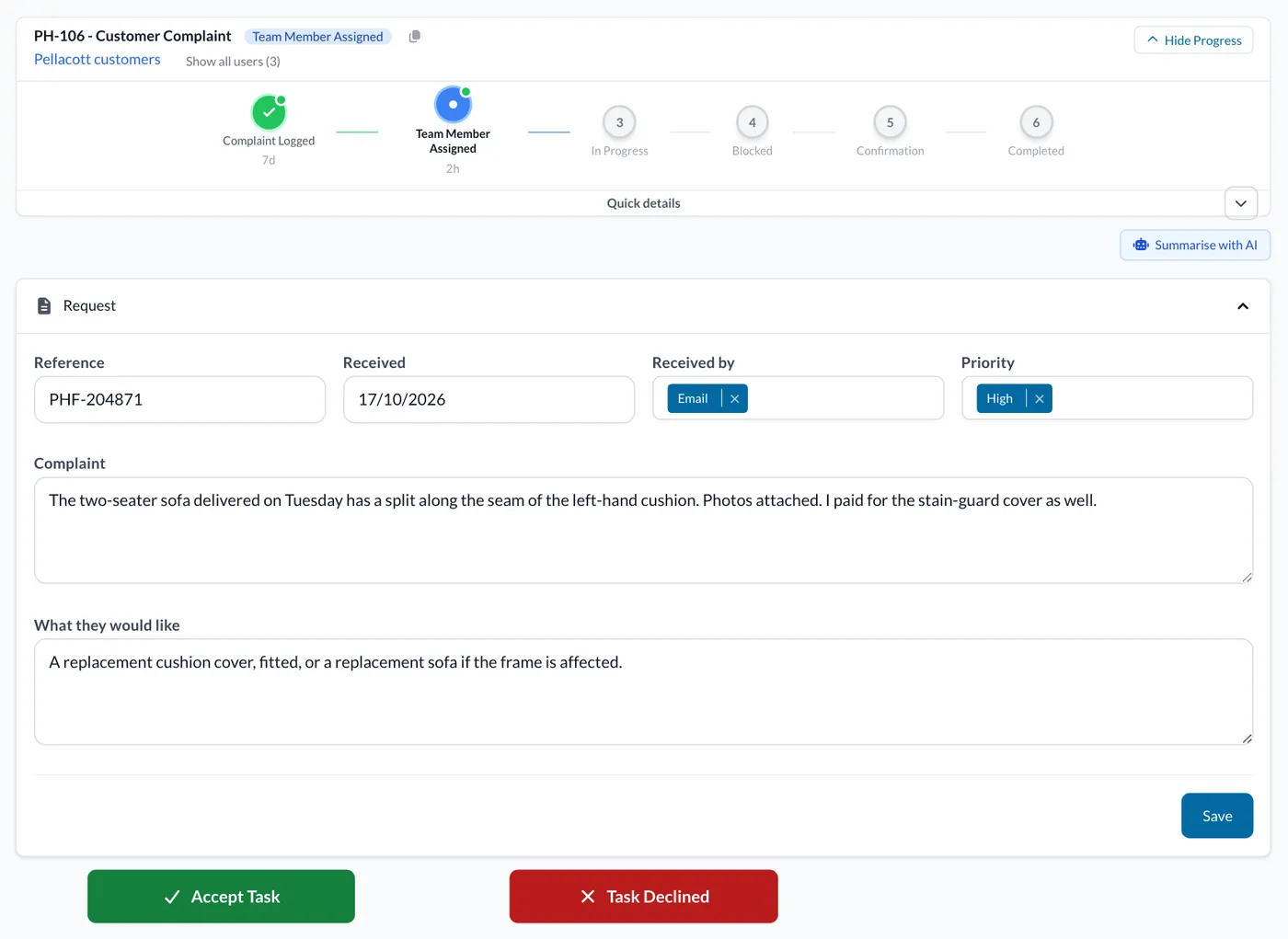
If the User does not accept the task they can click on the red Task Declined button. This will return the Task status to Complaint Logged and you will have to reassign a User (by following step 5).

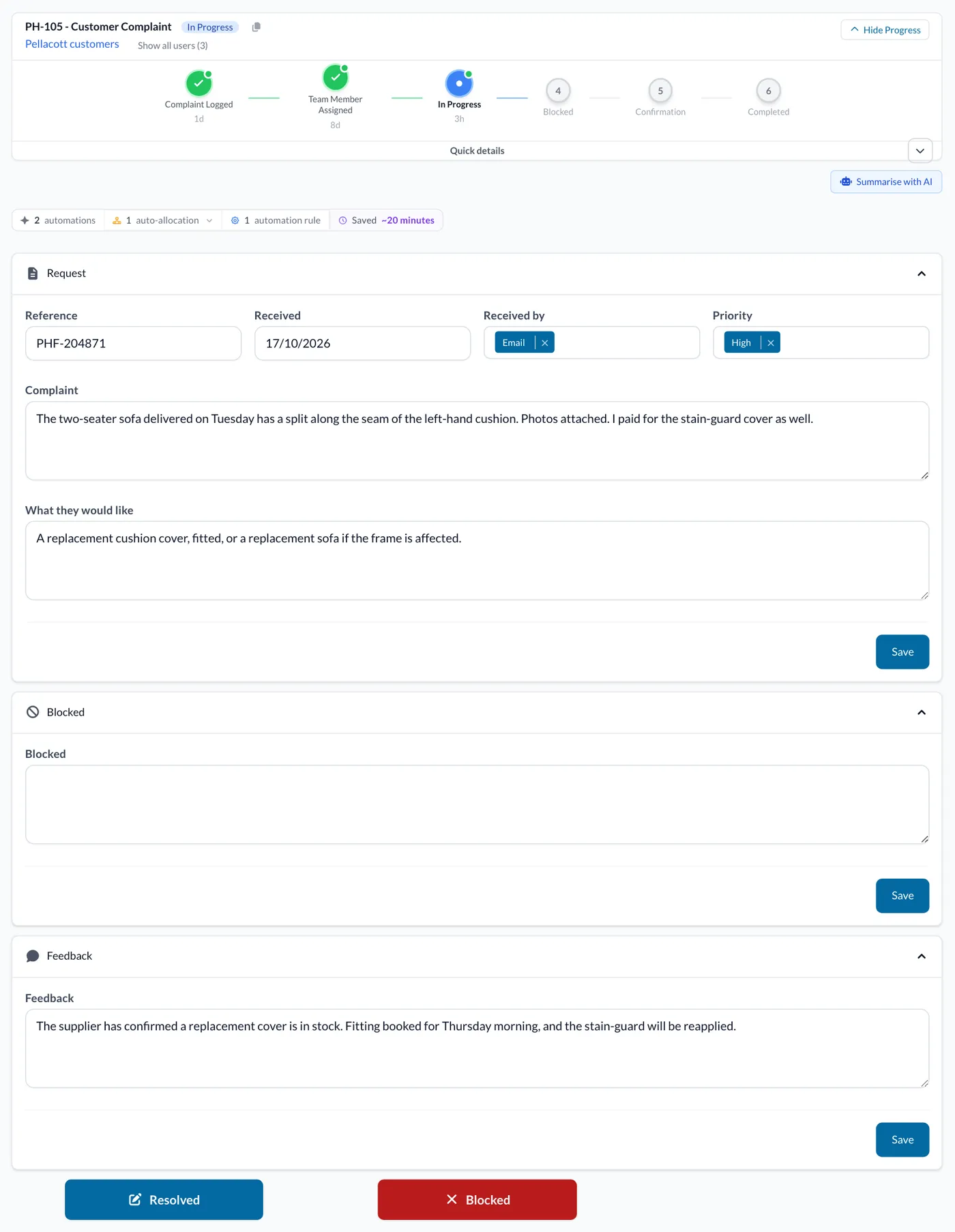
If there is an issue stopping the request from proceeding, the User can enter the details in the Blocked box and submit them by clicking the red Blocked button. This will update the Task status to Blocked. If the status is changed to Blocked, you or the User will need to provide notes on the issue in the box provided on the Task page. Once the issue has been resolved, return to the Task page, provide feedback, and click the blue Resolved button. This will update the Task status to In Progress. If the issue is yet to be resolved, provide feedback and click the Blocked button again. You can repeat this process until the issue is resolved.
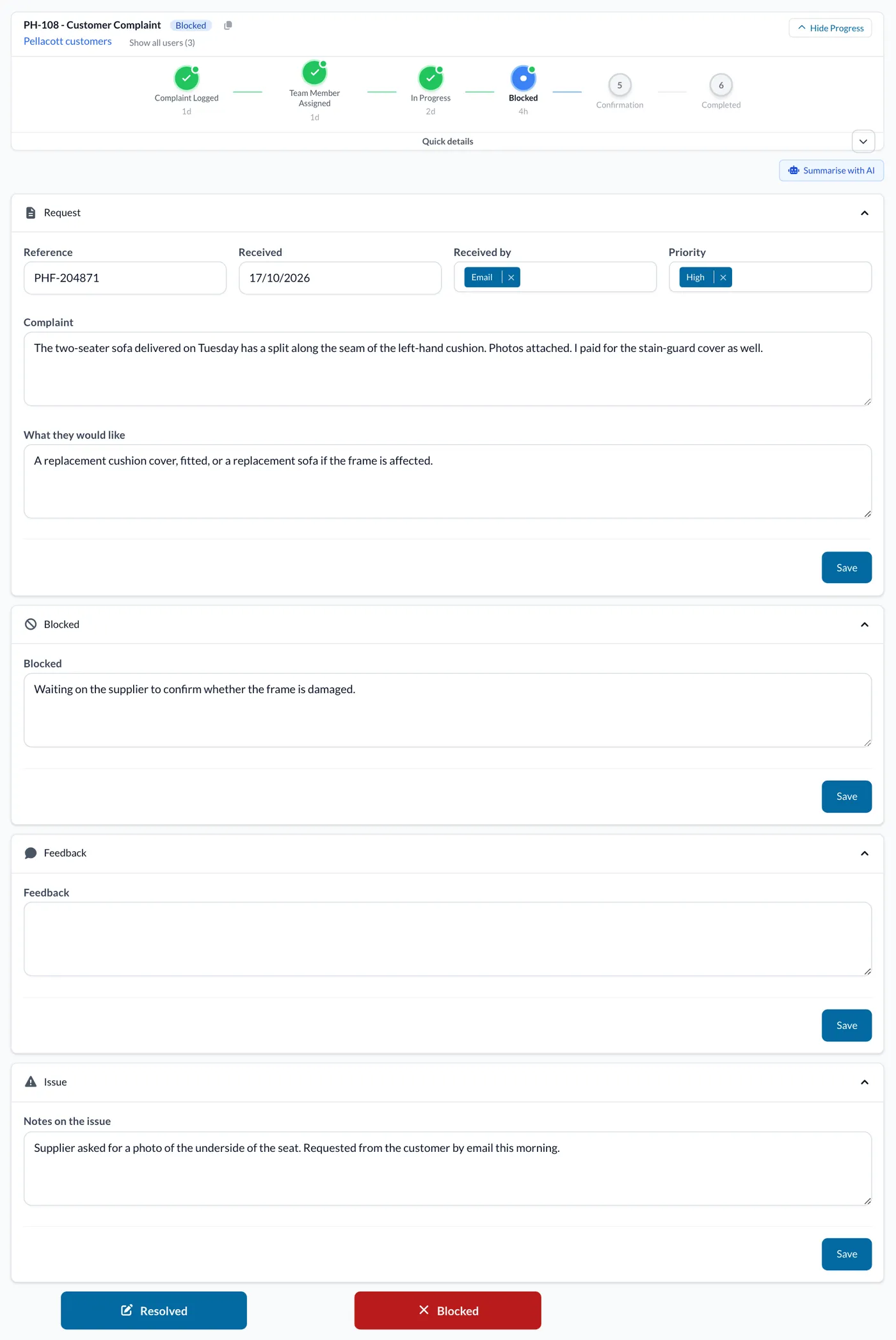
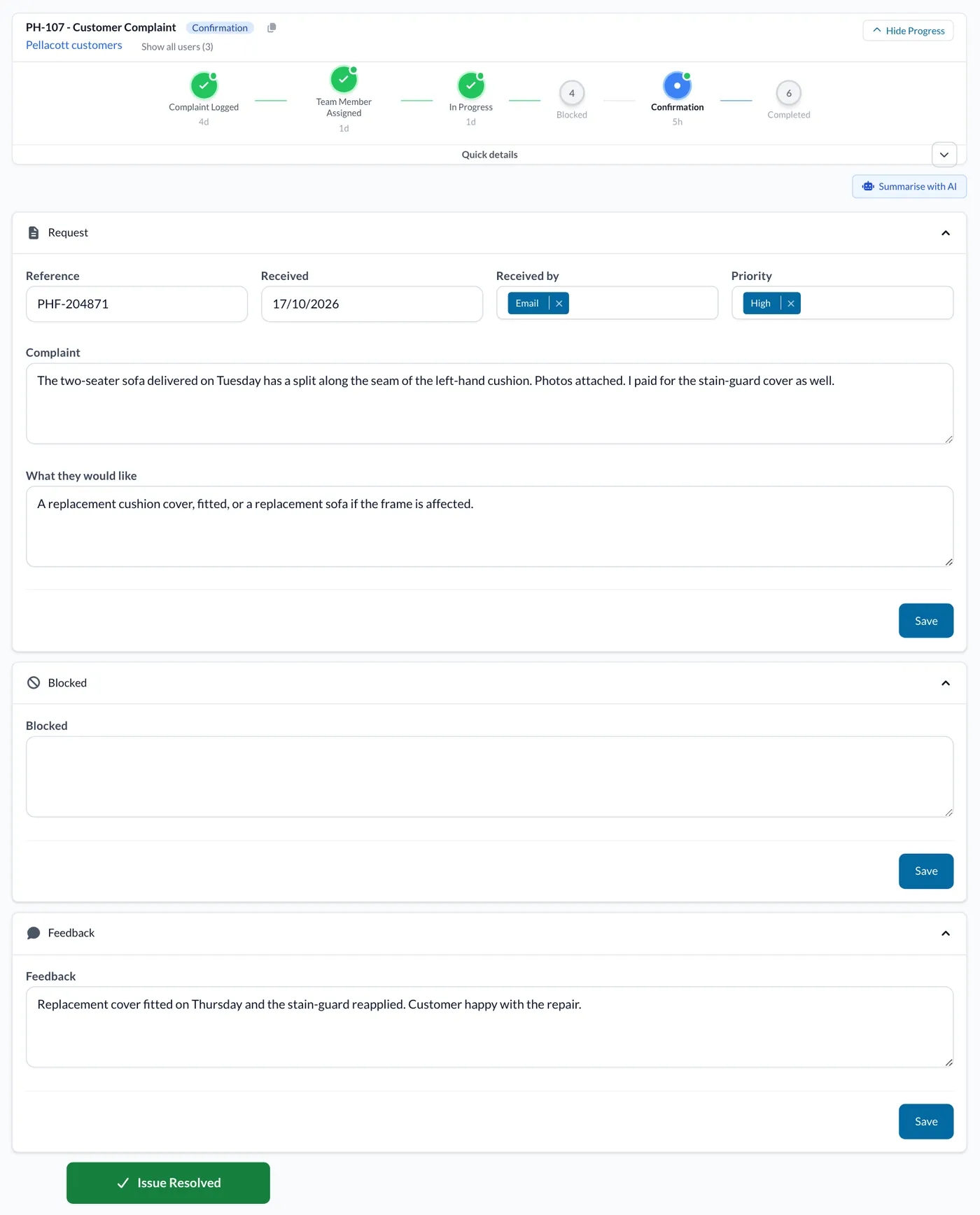
Once the User has fixed the problem, they can return to the Task page, provide feedback on the issue, and then click the blue Resolved button. This will update the Task status to Confirmation.
The Customer who submitted the complaint will then have to confirm the issue was resolved by clicking the green Issue Resolved button. If the User does not confirm that the issue is resolved and has been completed for four days, the Customer Complaint will automatically close.
Ready to automate your workflows?
SwiftCase helps operations teams streamline their processes with powerful workflow automation, case management, and AI-powered communication tools.