

SwiftCase
PlatformForward-deployedSwitchboardFeaturesSolutionsCase StudiesFree ToolsPricingAbout
Book a Discovery Call
SwiftCase

Workflow automation for UK service businesses. Created in the UK.

A Livepoint Solution

Platform

  • Platform Overview
  • Workflow Engine
  • Case Management
  • CRM
  • Document Generation
  • Document Extraction
  • Context Graph
  • Data Model
  • Integrations
  • Analytics

Switchboard

  • Switchboard Overview
  • Voice AI
  • Chat
  • Email
  • SMS
  • WhatsApp

Features

  • All Features
  • Claims Operations
  • High-Volume Operations
  • Multi-Party Collaboration
  • Contract Renewals
  • Compliance & Audit
  • Pricing
  • Case Studies
  • Customers
  • Why SwiftCase

Company

  • About
  • What is SwiftCase
  • Our Team
  • Adam Sykes
  • Nik Ellis
  • Implementation
  • 30-Day Pilot
  • Operations Pressure Map
  • For Your Role
  • Peer Clusters
  • Engineering
  • Careers
  • Partners
  • Press
  • Research
  • Tech Radar
  • Blog
  • Contact
  • SwiftCase Signal

Resources

  • Use Cases
  • Software
  • ROI Calculator
  • Pressure Diagnostic
  • Pilot Scope Estimator
  • Board Case Builder
  • Free Tools
  • Guides & Templates
  • FAQ
  • Compare
  • Best Practices
  • Changelog
  • Documentation
  • Help Centre

Legal

  • Privacy
  • Terms
  • Cookies
  • Accessibility

Stay in the loop

Cyber Essentials CertifiedGDPR CompliantUK Data Centres

The screenshots on this page are SwiftCase's own screens, filled with made-up firms, cases and people, so no client's data is on show.

© 2026 SwiftCase. All rights reserved.

Back to Blog
Industry Insights

Expense Claim Workflow

The Expense Claim Workflow allows your Clients and you and your Team Members to quickly and easily claim back any company expenses. Using the Expense.

Dr. Adam Sykes

Dr. Adam Sykes

Founder & CEO

June 7, 2024
3 min read
Expense Claim Workflow

The Expense Claim workflow allows your Clients and you and your Team Members to quickly and easily claim back any company expenses.

Using the Expense Claim Workflow

Click Dashboard, then click the green Create New Task button at the top right.

Search for the Client in the Search subject box and select them, then choose the Client Staff who needs to claim expenses back.

Choose the Expense Claim Workflow and click Create Task. This opens the Task page, with the task at Expense Claim Form.

Fill out the expense claim form and click Save. You are allowed up to 5 different entries/claims.

Click the blue Assign Manager button and assign a manager to review the expense claim. This will update the Task status to Manager Approval.
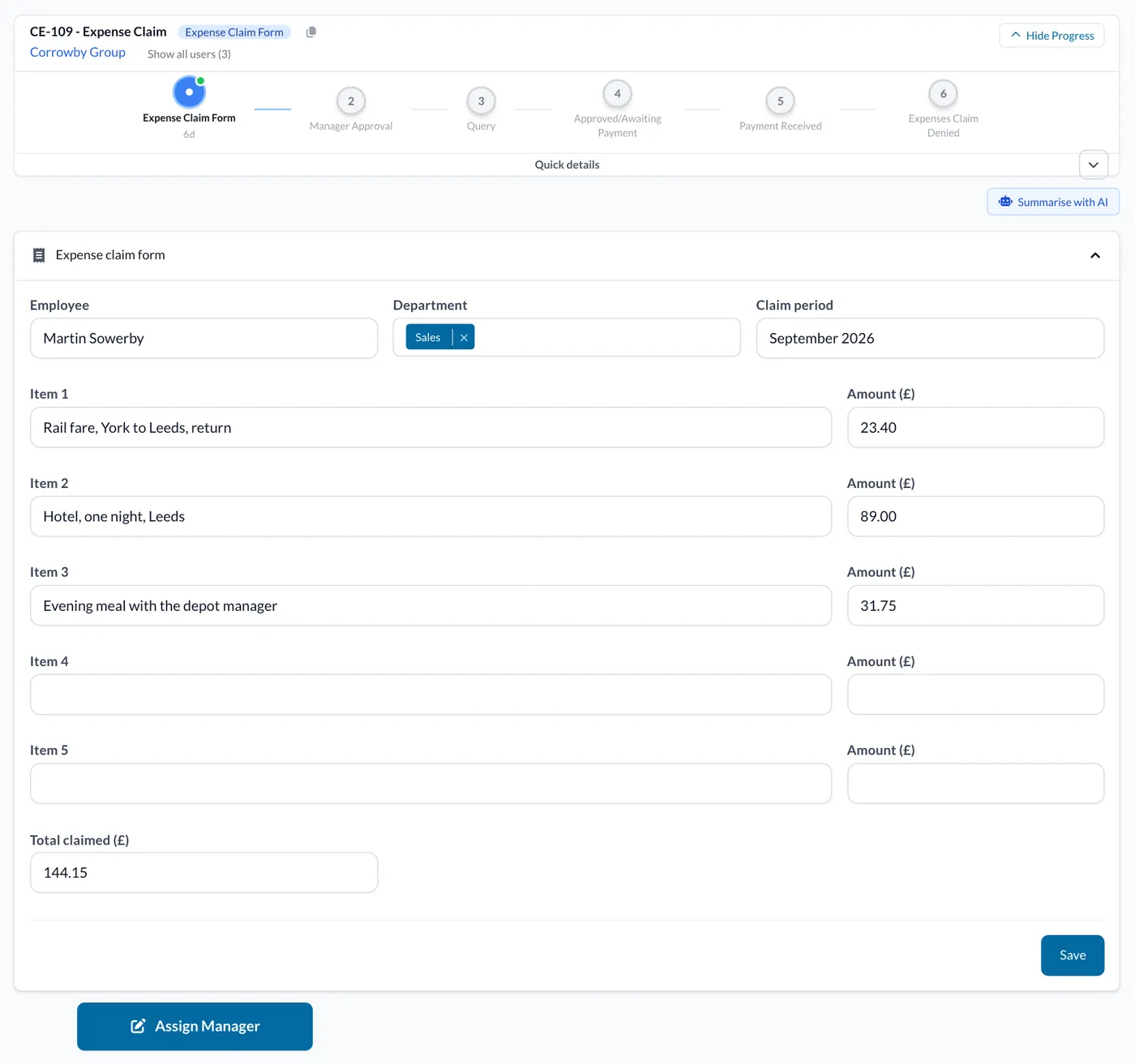
An expense claim form with three items and the total, and the blue Assign Manager button.

If the manager approves the claim, the Employee and Manager can provide their signatures in the fields provided and click the Save button and then the green Expenses Approved button. This will update the Task status to Approved/Awaiting Payment.

If the manager has any issues with the claim they can submit these in the query box provided and click the red Query Expenses button. This will update the Task status to Query.
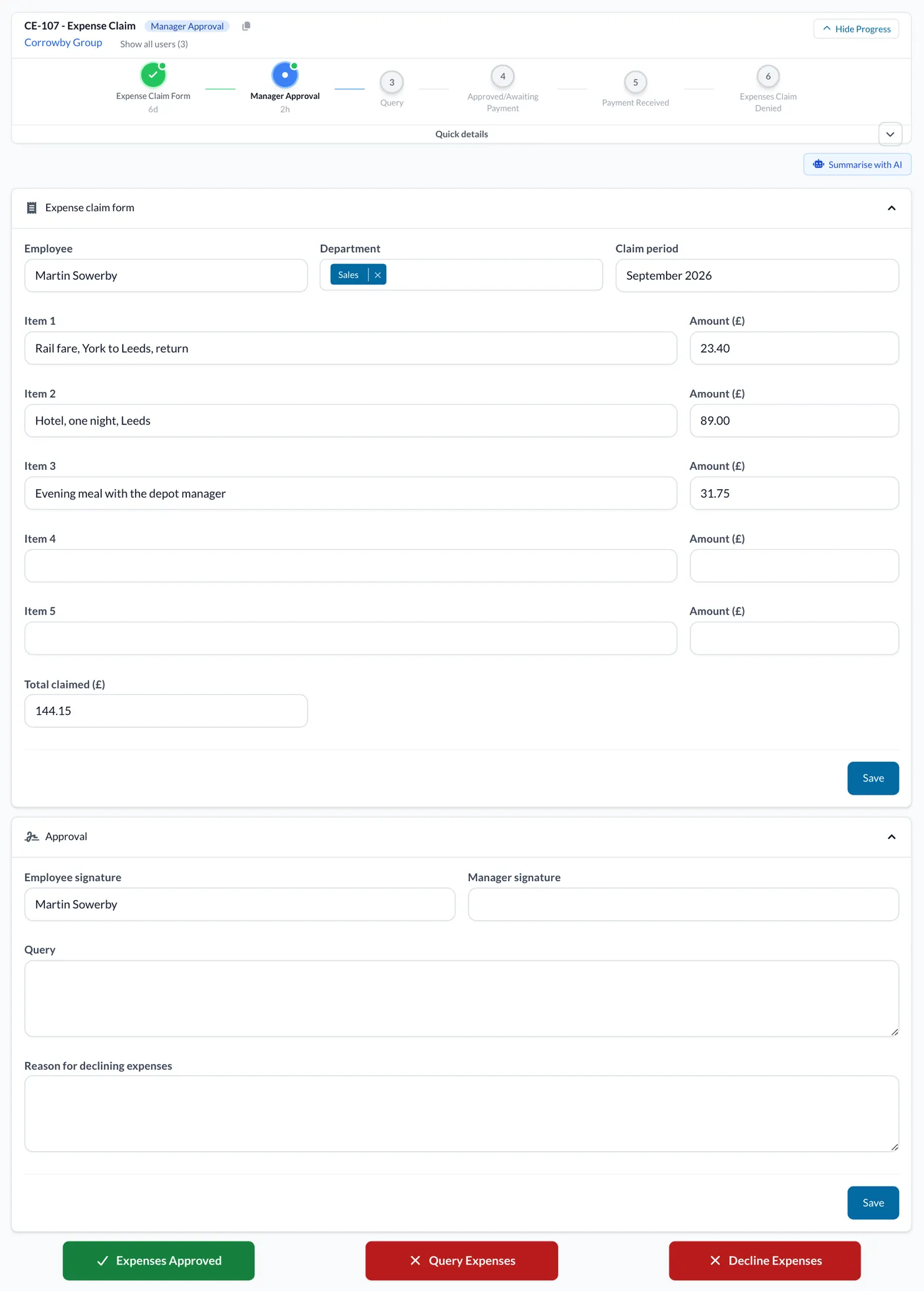
An expense claim at Manager Approval, with the signature fields and the Expenses Approved and Query Expenses buttons.

Once the query has been answered or resolved, the manager can return back to the task page and give feedback regarding the query in the box provided, then click the green Give Response button. This will update the status of the Task back to Manager Approval, from here they can approve the expenses, submit another query, or decline the expenses.
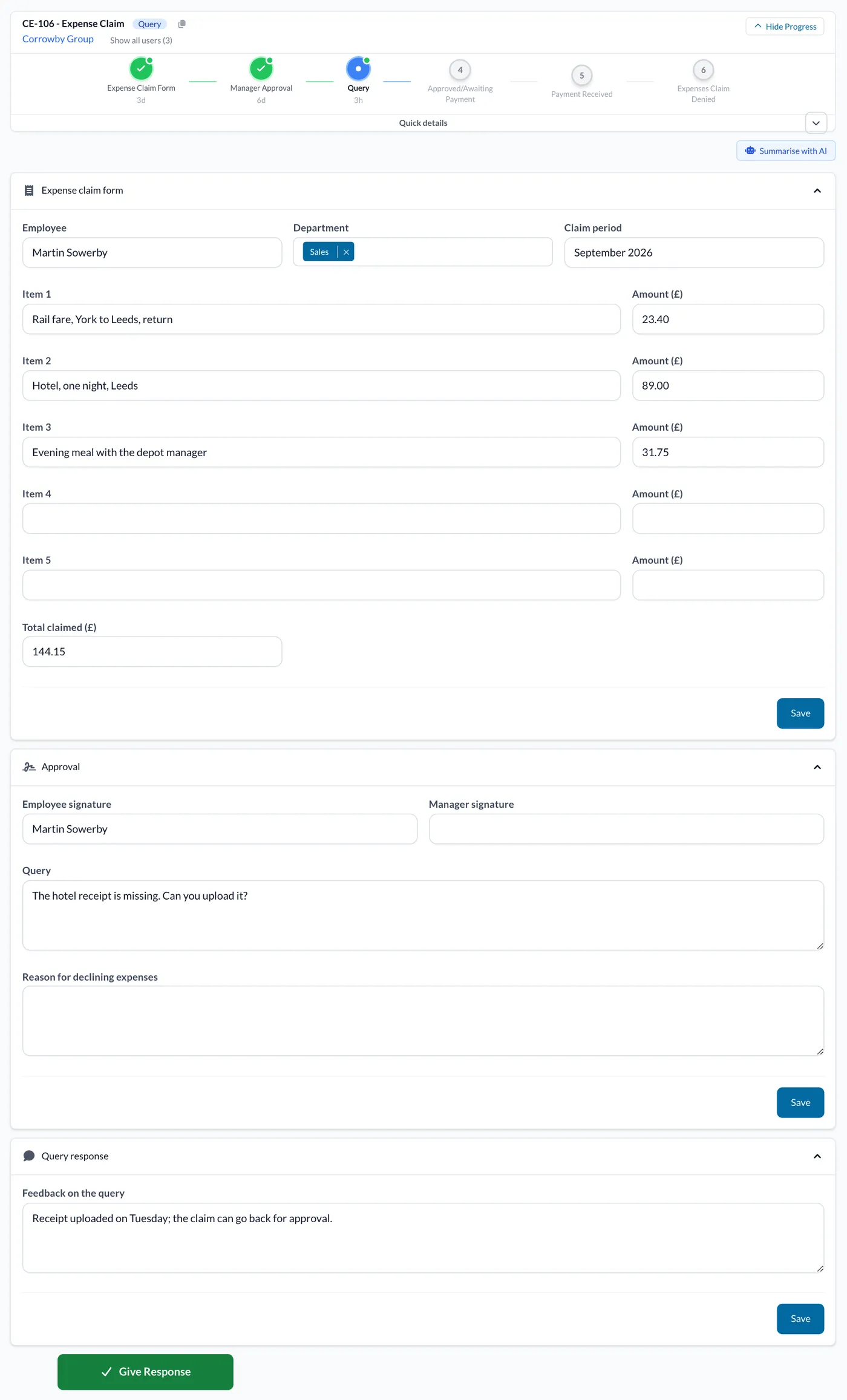
An expense claim at Query, with the manager's query, the feedback and the green Give Response button.

If the manager wishes to deny the claim request, they can submit the reason in the Reason for declining expenses box and click the red Decline Expenses button. This will update the task status to Expenses Claim Denied.
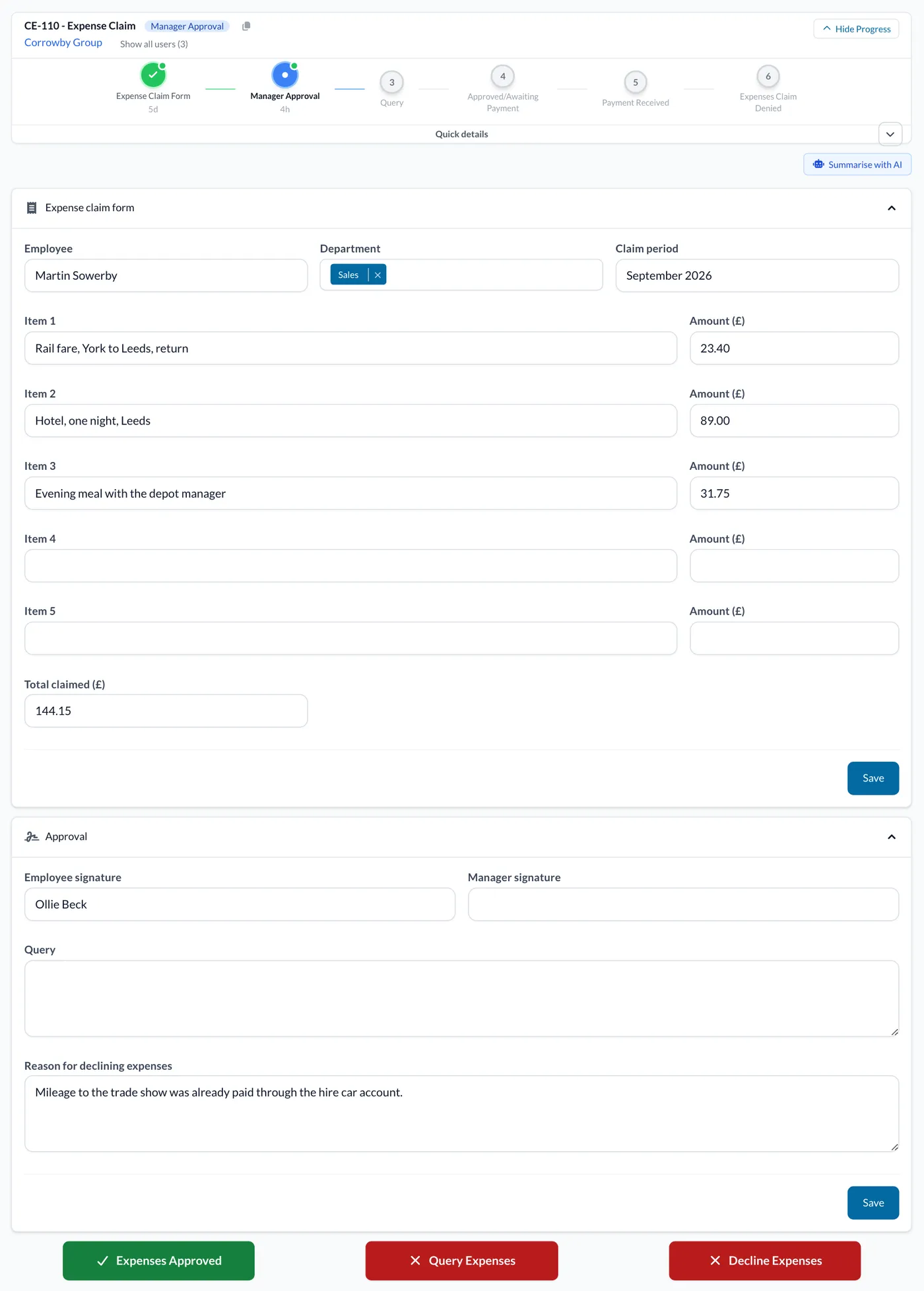
An expense claim at Manager Approval with a reason for declining and the red Decline Expenses button.

Once the Employee has received the payment, the manager will need to return to the Task page and click on the green Payment Received button. This will update the task status Payment Received. The Task is now completed.
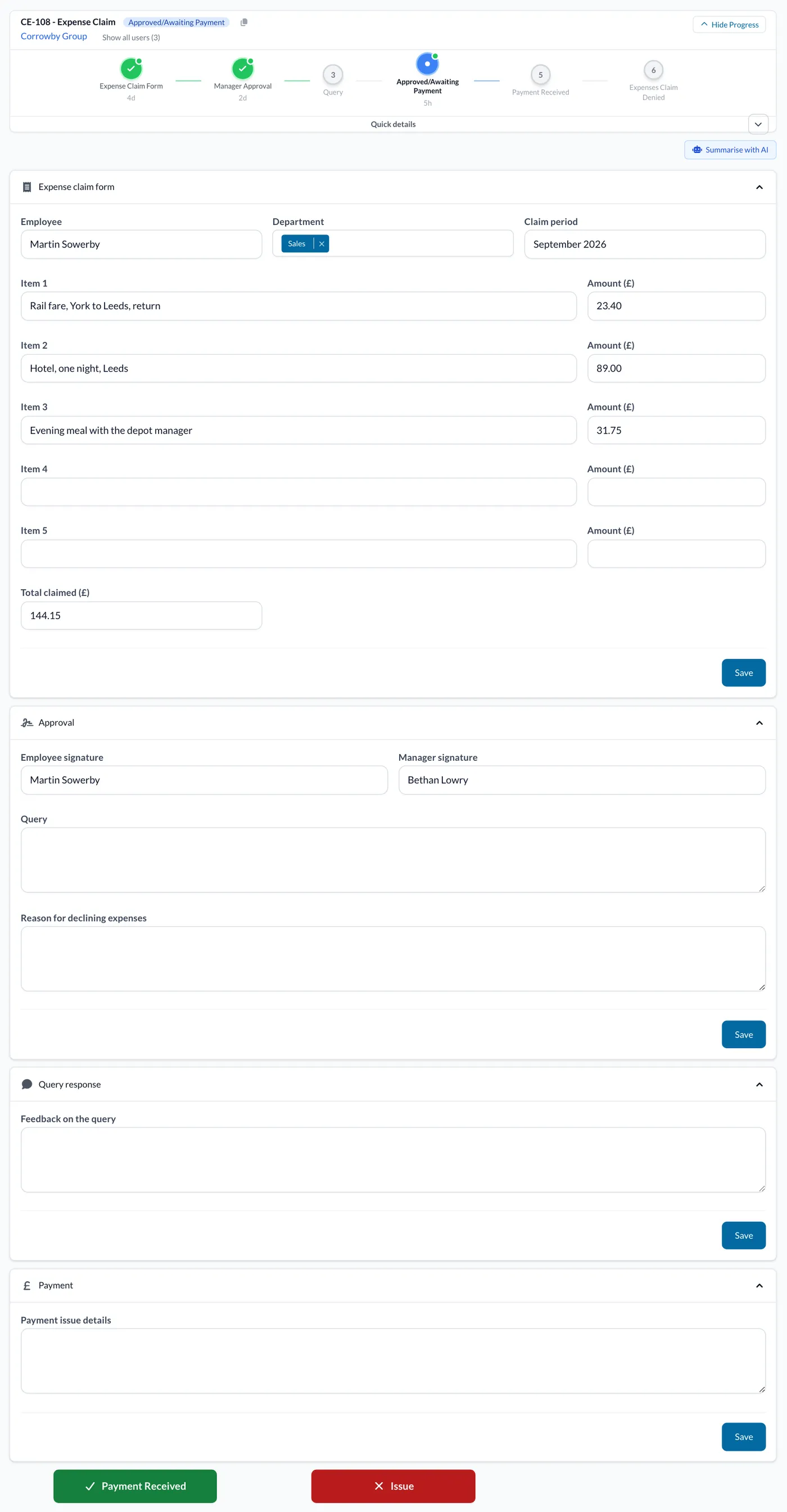
An expense claim at Approved/Awaiting Payment, with the green Payment Received button.

If there is an issue with the payment, the manager can log the details in the Payment issue details box above the buttons and click on the red Issue button to submit the problem. This will update the task status to Query.
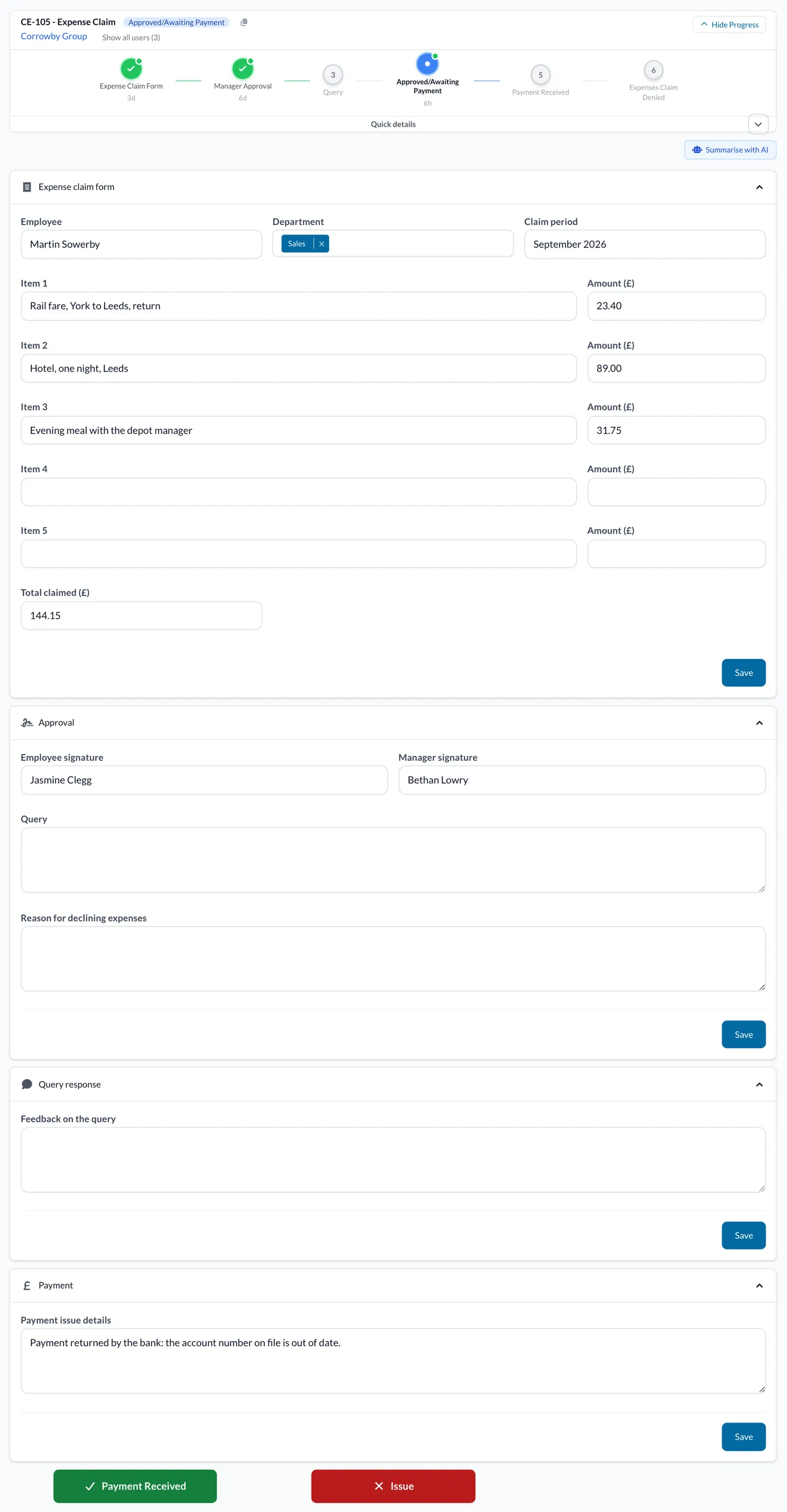
An expense claim at Approved/Awaiting Payment with the payment issue described and the red Issue button.


Ready to automate your workflows?

SwiftCase helps operations teams streamline their processes with powerful workflow automation, case management, and AI-powered communication tools.

Book a demo | View pricing | Explore the platform

Related Articles

Industry Insights

Voice AI vs Chatbots: Why Phone Calls Still Matter in 2026

January 8, 20267 min read
Industry Insights

The Hidden ROI of Voice AI: What Finance Leaders Need to Know

November 19, 20257 min read
Industry Insights

Why Your Competitors Are Answering Calls at 3am (And You Should Too)

September 24, 20256 min read

Get automation insights delivered

Join operations leaders who get weekly insights on workflow automation and AI.

About the Author

Dr. Adam Sykes
Dr. Adam Sykes

Founder & CEO

Founder & CEO of SwiftCase. PhD in Computational Chemistry. 35+ years programming experience.

View all articles by Adam →

Related Free Tools

FCA Compliance Checker

Free self-assessment across Consumer Duty, complaints, and governance.

Try free

Policy Admin Efficiency Scorer

Score your policy admin efficiency and find automation opportunities.

Try free

BCP Builder

Build a Business Continuity Plan with guided templates.

Try free

11.8M+ cases processed

See how SwiftCase fits your industry

Purpose-built solutions for insurance, legal, finance, and more, tailored to your sector's needs.

Browse Solutions
Read Case Studies
4.6 on Capterra
4.8 on G2